Best Practices for Video Recording Service Attempts

Purpose of Video Recording
Video recordings are used for documentation, accuracy, and service verification. Recordings should always be conducted professionally, respectfully, and with safety as the top priority.
When to Begin Recording
It’s best to initiate recording at the very beginning of your service attempt. This ensures that you capture any interactions and the surrounding context.
Verbal Notice of Recording
IMPORTANT!!!
In many states, you’re legally required to provide notice that you are recording, and the other party must consent to being recorded.
A simple statement such as "Just so you are aware, I'm recording this for accuracy" will suffice.
Use a calm, neutral tone when providing notice.
If Consent Is Not Given
-
Stop recording immediately if an individual clearly states they do not consent to being recorded.
-
Verbally confirm that recording has stopped (for example: “No problem, I've stopped the recording and it will be deleted”).
-
Do not resume recording that encounter, or if you return to that address.
When to End Recording
-
End the recording once:
-
The interaction is complete, and you've turned to head back to your car.
-
Any necessary residency inspection or verification steps are finished.
-
Do not continue recording beyond the scope of the service attempt.
Professional Conduct and Safety Expectations
-
Maintain a professional, calm, and non-confrontational demeanor at all times.
-
If a resident appears hesitant or concerned, politely reassure them of the purpose of the recording.
-
Safety comes first:
-
Do not escalate hostile or tense situations.
-
If conditions feel unsafe, disengage and prioritize your personal safety over documentation.
-
Step-by-Step
1. Take video at the location of your service attempt. If using a smartphone camera, this is done through the normal means of capturing video. Currently, there is no option to take video directly through ABC Mobile.
2. Report the service event in the usual way. You are still required to take photos.
3. The video must be imported via the job in ABC Mobile. At this time, you must be on WIFI to import videos.
-
-
Open the job in ABC Mobile.
-
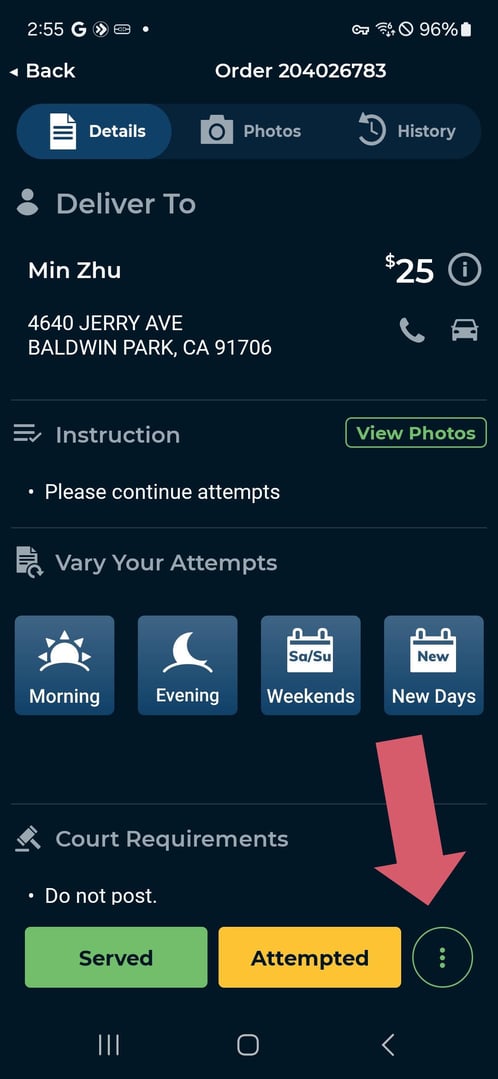
Click on the “More Options” button with the three dots in the lower-right corner.
-
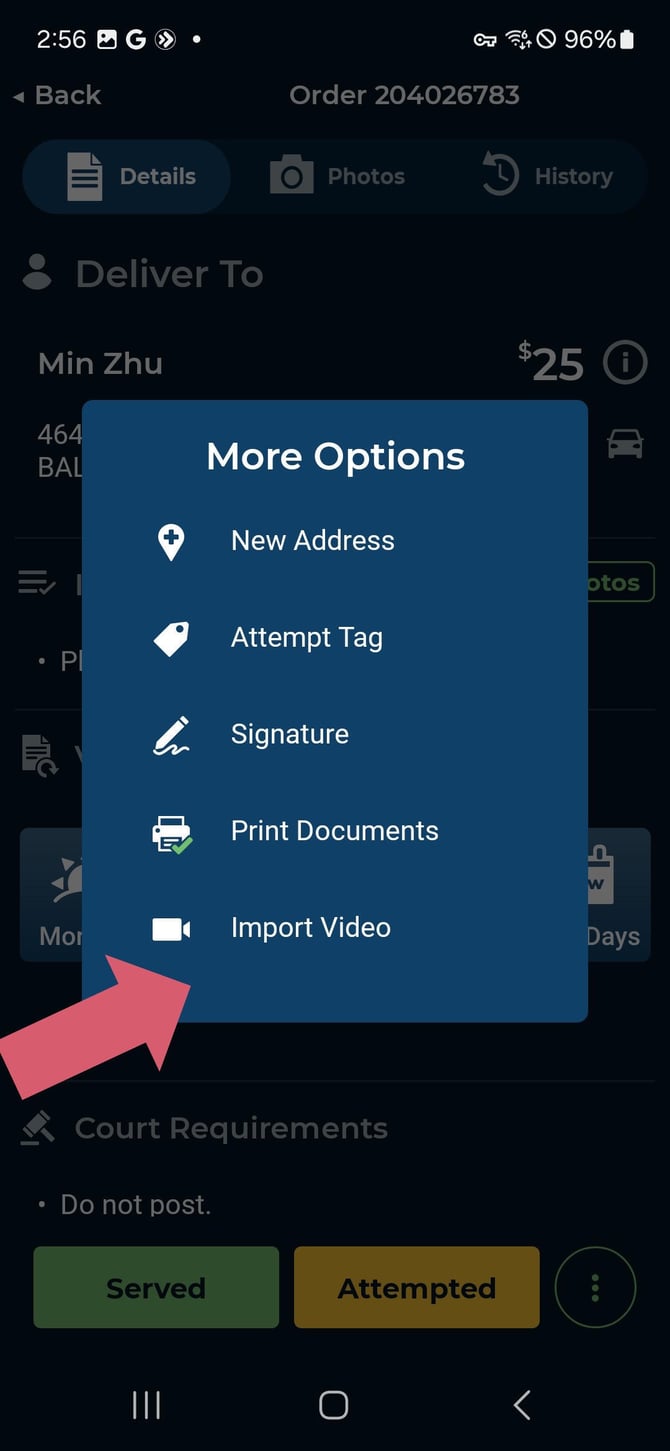
Select “import video”
-
NOTE: Notifications must be enabled in order to import video. Navigate to your settings to enable notifications.
-
-
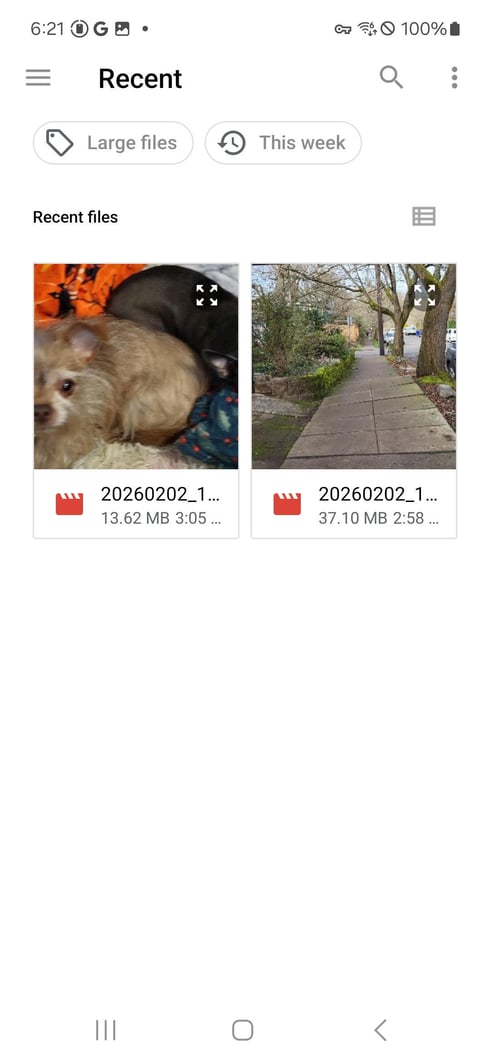
4. Select the video you wish to import from the menu.
5. You will be notified once the video has successfully imported, and given the option to remove the original video from the library on your personal device.
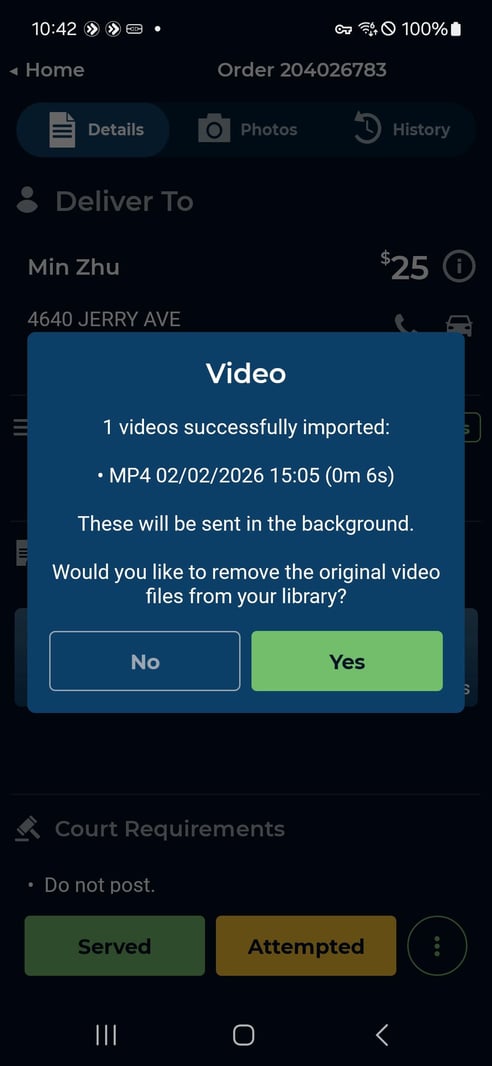
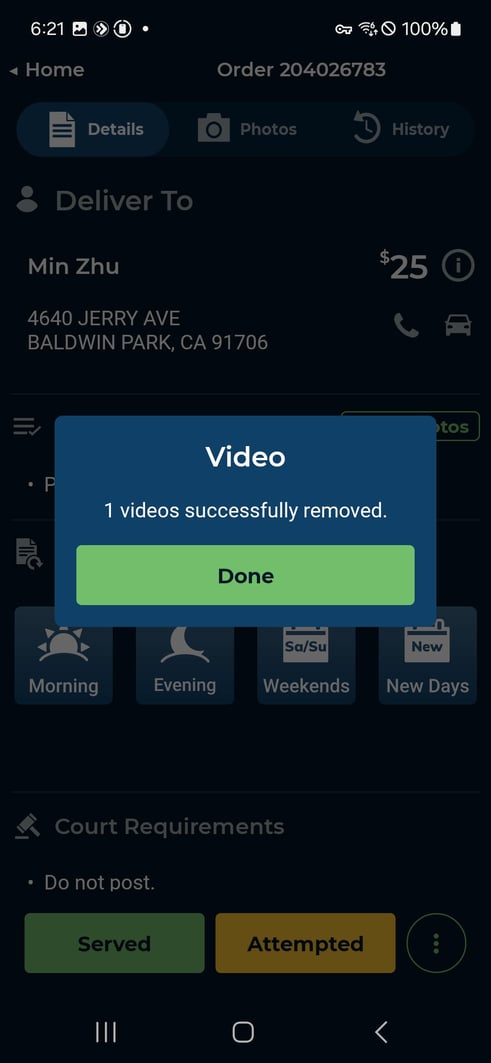
6. If you choose to delete the file from your library, you will receive a notification once this is completed.